Hosted account
The recommended start. Sign in and turn on sync to use the same prompts, rows, settings, and usage history across web and Chrome. In hosted mode, the pages and text you capture go to our service and to OpenAI to build the row.
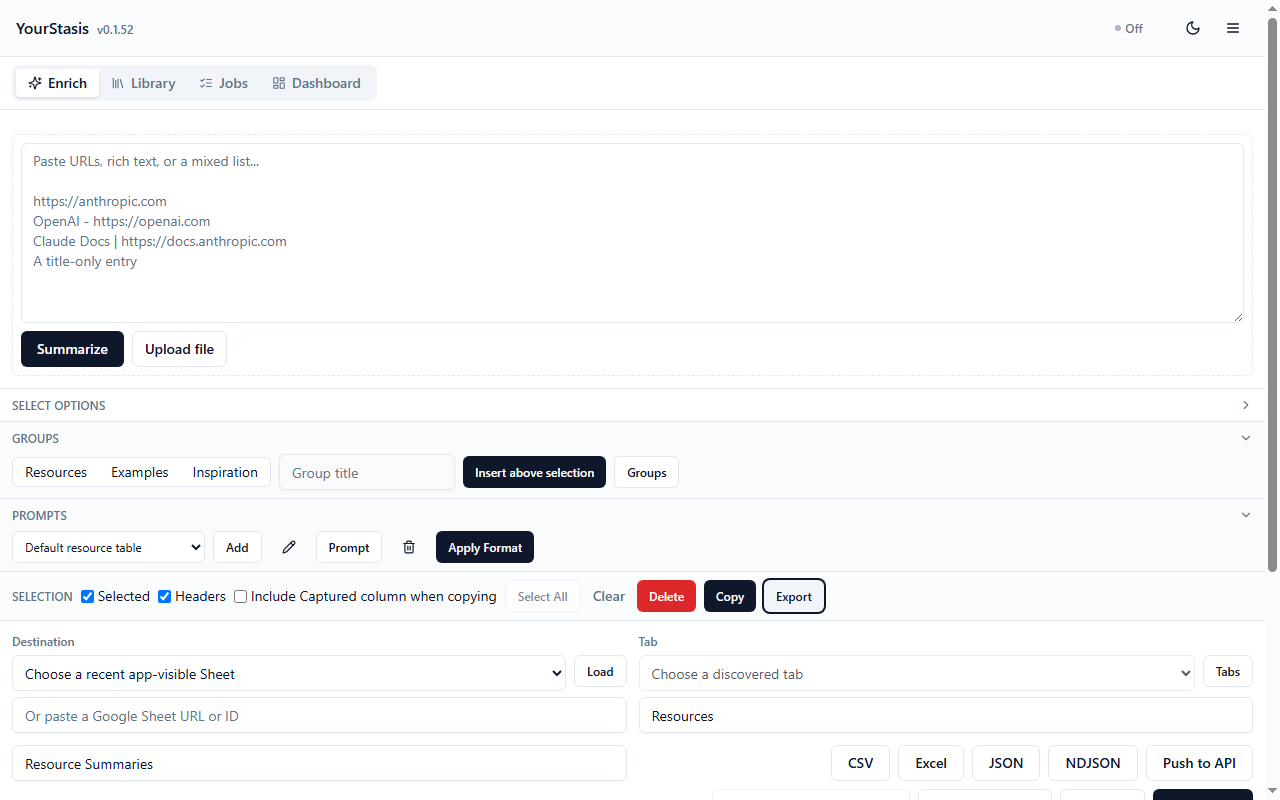
YourStasis is a Chrome extension and web app for people who keep a reference spreadsheet. Give it URLs, rich text, or a text file of links, or capture the tab you are on with the Chrome extension. It returns editable rows for you to review.
Review and edit your rows, copy as TSV and paste into your sheet.
Free accounts have a daily allowance. Install the current beta extension, sign in on the same account, and capture your first link to review.
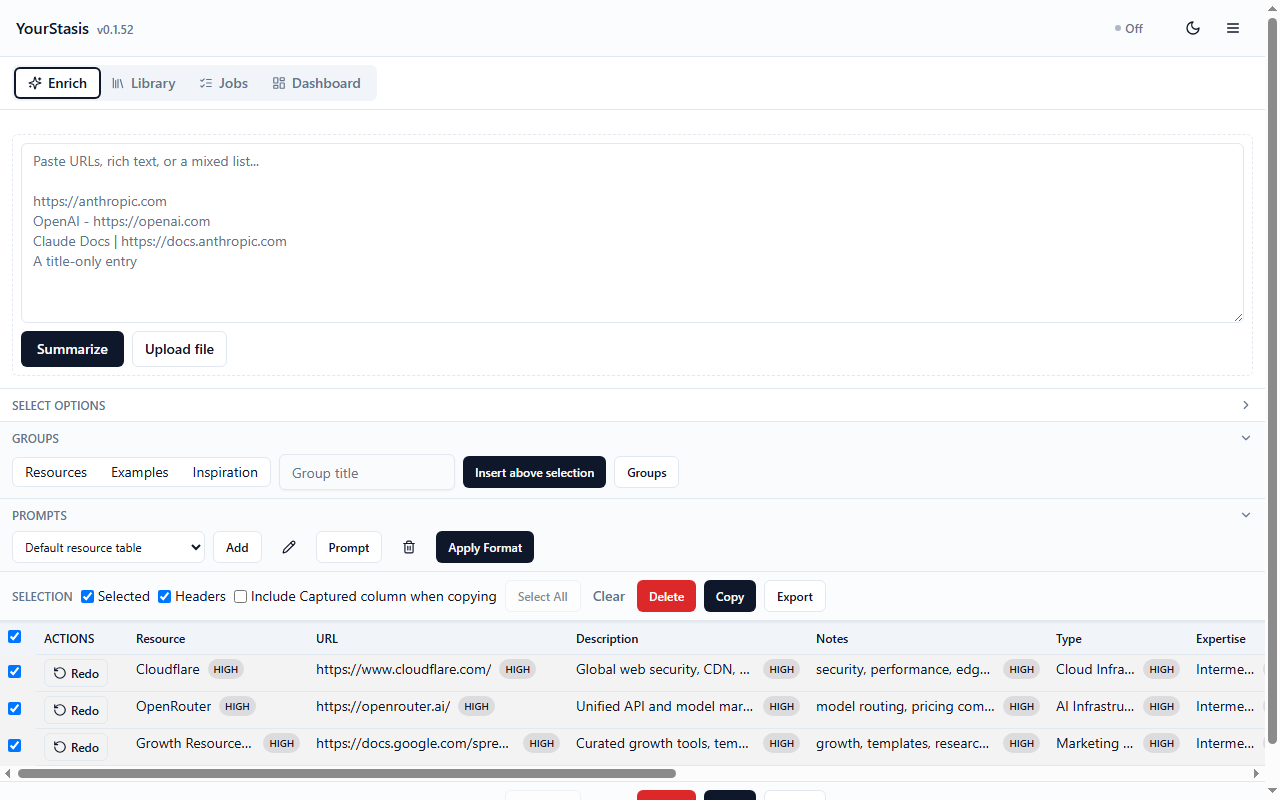
Screenshots from an earlier build. Current screens differ slightly.
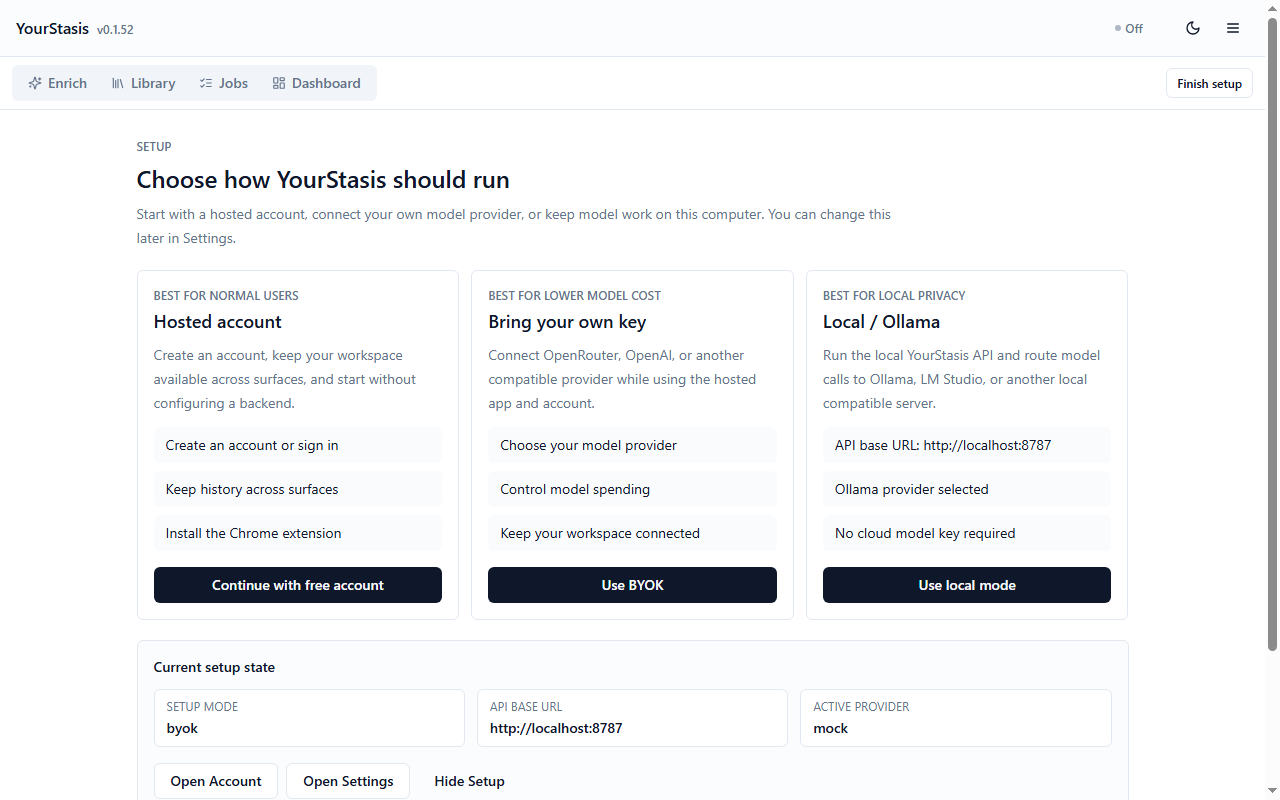
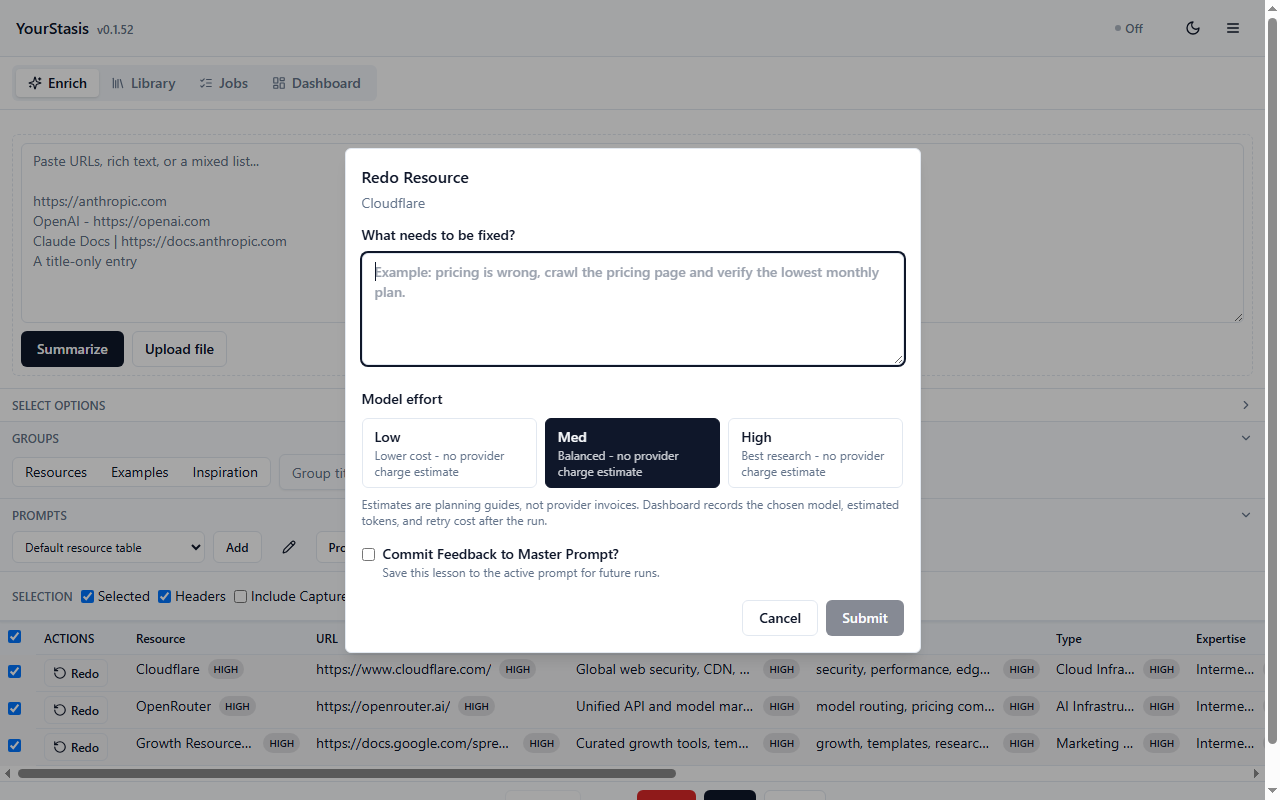
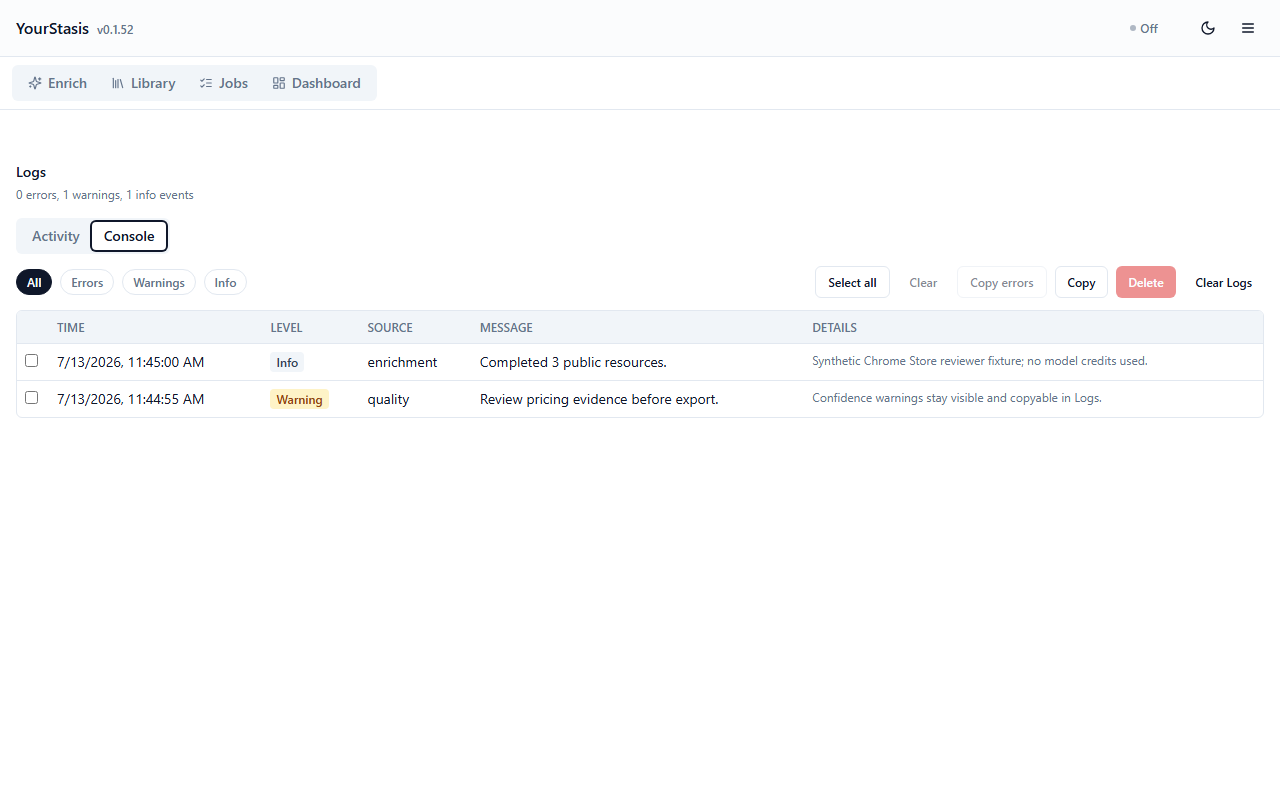
In Setup, open Advanced: choose where model work runs to find these modes, Run preflight and Copy setup report. You can switch paths later.
The recommended start. Sign in and turn on sync to use the same prompts, rows, settings, and usage history across web and Chrome. In hosted mode, the pages and text you capture go to our service and to OpenAI to build the row.
Use your own OpenRouter or OpenAI key. Your key is saved on your device. When you enrich through our service, it is sent with each request so we can call your provider; we do not store it. It is not copied into your account unless you turn on encrypted account secrets (Account > Integrations).
For developers: you need the YourStasis source code. Run the local server on Windows and use Ollama or another OpenAI-compatible local provider. Account sync, if on, still saves your rows.
Use the account action above, then confirm your email when prompted. Free accounts have a daily allowance. Existing users can sign in instead.
The Chrome Web Store listing is not live yet. Download
YourStasis v0.1.56 for Chrome, unzip it, then open chrome://extensions, turn on Developer mode,
choose Load unpacked, and pick the unzipped folder that contains manifest.json. Pin
YourStasis from Chrome's Extensions menu.
Open the pinned extension or side panel, choose Sign in, and use the same account. Return here and use the sign-in action if you need to finish account access first.
Capture a page, run an enrichment and review the row. Save account snapshot saves a copy of your prompts, rows and settings to your account right now; you do not need a manual save to start sync.
The beta is installed as an unpacked extension. Chrome's Update button does not fetch beta downloads, so extract a newer release over the same folder and reload the extension card when you upgrade. Once the Chrome Web Store listing is live, updates will arrive automatically and this step goes away.
Sync lives in Account > My Account. In the web app the switch is Sync across my devices and it is on after you sign in. In Chrome extension v0.1.56 it is Auto-sync after enrichment, off until you tick it. When sync is on, your rows, prompts, settings, usage and logs are saved to your account shortly after they change, and rows from your other devices appear when you open or return to the app.
It never carries provider keys, your sign-in, or Push to API addresses and passwords. If a device already has rows when you sign in, you choose whether to keep them on this device (sync stays off), add them to your account, or replace them with your account's copy.
Sign in and press Load account snapshot. If asked, choose Merge account history to keep local rows, Replace local history to use your account's copy, or Cancel.
Review rows, turn Headers on when needed, choose TSV, and paste into Google Sheets. This is the fastest path for a first run.
Copy as TSV and paste into your sheet. Copy uses your selected rows, headers, and the active prompt's columns.